Manage an App LLM proxy
Once you create an App LLM proxy, manage its configuration through the proxy details page. This guide covers every management operation available for your App LLM proxy.
Access proxy details
-
Navigate to LLM > App LLM Proxies in the left navigation menu.
-
Click a proxy name to open its details page.
The proxy details page displays the following information at the top:
- Proxy name, with the version shown as a badge beside it
- Provider: the proxy's primary LLM service provider
- Context: the base path for the proxy's endpoints
- Last updated: the timestamp of the most recent change
- Created by: the user who created the proxy
The page is organized into five configuration tabs: Overview, Definition, Providers, Security, and Guardrails & Policies. Definition precedes Providers because the interface a proxy accepts decides what each provider needs translating to. On the right side, you'll find the Get Started panel with API key generation and deployed gateway information.
The Deploy to Gateway button and a delete icon are located in the top-right corner of the page.
Providers
Configure which LLM service providers the proxy connects to and how it authenticates with each of them. A proxy has at least one provider and may have several - see Route to several providers.
The provider list
-
Go to the Providers tab.
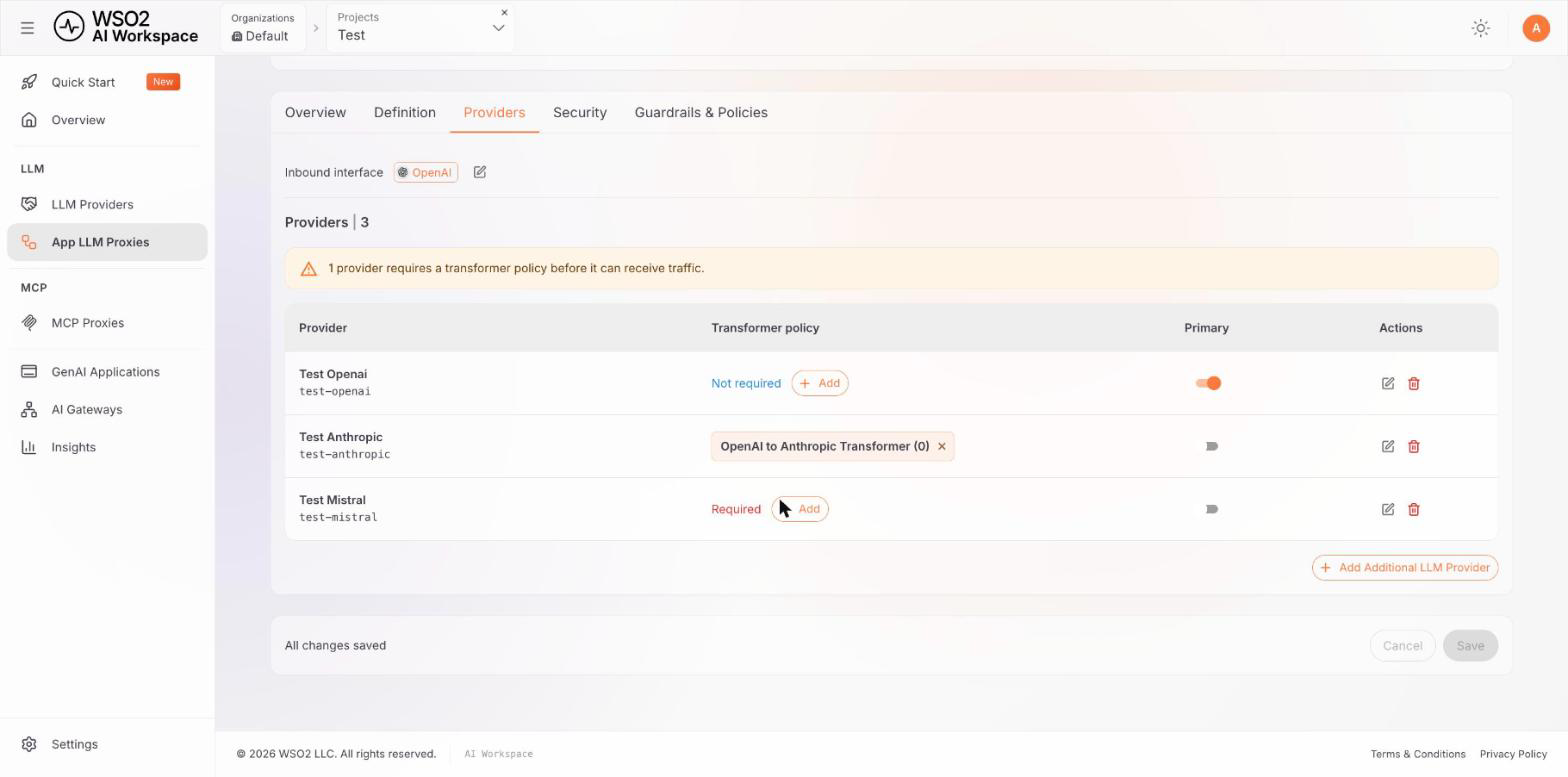
The tab shows the proxy's Inbound interface, the number of providers attached, and a table listing each one.
-
Each row shows the provider's name with its Provider ID beneath, its Transformer policy, a Primary toggle, and row actions.
-
Use Edit provider to change a row's credential or transformer, + Add Additional LLM Provider to attach another, and Remove provider to detach one. Move the primary marker with the Primary toggle.
The provider selection lists all service providers configured in your workspace that are not already attached.
Info
Changing a provider updates related settings such as authentication and available resources.
Note
The last remaining provider cannot be removed. A proxy always has at least one.
Edits are held on the page until you save, so you can adjust several providers and apply them together. The bar at the bottom of the page reports whether anything is unsaved.
API key configuration
If a provider uses API key authentication, its provider panel shows an API Key field. Each provider carries its own credential, entered manually or generated from the panel.
| Field | Description |
|---|---|
| Header Name | The authentication header the provider requires, taken from the provider's Security tab (for example, Authorization for an OpenAI provider). This field is read-only. |
| API Key | Enter your provider's API key in this field. |
To configure:
- Enter the API key in the API Key field.
- Click Save API Key to store the credential securely.
Security best practices
- The workspace encrypts API keys and stores them securely.
- Keys aren't displayed after saving.
- Store a backup copy in a secure location.
- Rotate keys regularly.
Resources
Define which API endpoints (resources) are available through this proxy by importing an OpenAPI specification.
OpenAPI specification
The OpenAPI specification defines the resources, or API endpoints, available through your proxy. For some providers, the workspace populates the specification for you.
To import manually:
-
Go to the Definition tab.
-
Click the Import from file button.
-
Upload a JSON or YAML file containing your OpenAPI specification.
-
The proxy automatically parses the file and displays the extracted resources.
OpenAPI format
The proxy accepts OpenAPI 3.0 and 3.1 specifications in both JSON and YAML formats.
View resources
After importing, the Resources panel on the Definition tab displays the count and list of parsed resources, and the Overview tab lists them too. Each resource shows:
- HTTP Method: the HTTP method (GET, POST, PUT, DELETE, or PATCH)
- Resource Path: the endpoint path, for example
/v1/chat/completions - Description: the description extracted from the OpenAPI specification
Security
Configure how client applications authenticate when accessing your proxy endpoints.
Authentication
-
Go to the Security tab.
-
Configure the following authentication settings:
| Field | Description |
|---|---|
| Authentication type | Select the authentication method from the dropdown. API Key is the only available method. |
| Key name | The name of the request header that clients must provide. A new proxy inherits its provider's key name, for example Authorization for an OpenAI provider. |
| Sent in | Where clients send the key. header is the only supported option. |
| API Key Value Prefix | An optional prefix prepended to the value clients must send, for example Bearer, so that clients send Bearer <key>. |
- Click Save to apply the security configuration.
Guardrails
Attach guardrails to enforce content safety, compliance, and quality standards on this proxy.
Global guardrails
Global guardrails apply to all resources in the proxy.
To add a global guardrail:
-
Go to the Guardrails tab.
-
In the Global Guardrails section, click + Add Guardrail.
-
A right-side panel opens displaying the available guardrails and policies.
-
Select a guardrail from the list.
-
Configure the guardrail settings including version, parameters, and any advanced settings.
-
Click Submit to add the guardrail.
Each guardrail you add appears as a pill showing its name and version.
Resource-wise guardrails
Resource-wise guardrails apply to specific endpoints only. This section lists each resource from your OpenAPI specification, so you can attach guardrails to individual endpoints.
To add a resource-specific guardrail:
-
In the Resource-wise Guardrails section, find the resource you want to protect.
-
Expand the resource card and click + Add Guardrail.
-
Select and configure the guardrail (same process as global guardrails).
-
Click Submit to attach the guardrail to the resource.
Manage guardrails
- View: Global guardrails appear as pills in the Global Guardrails section. Resource-specific guardrails appear under each resource card.
- Remove: Click the × icon on a guardrail pill to remove it.
Warning
After adding or removing guardrails, you must redeploy the proxy for the changes to take effect. Click Deploy to Gateway to apply your changes.
Info
Learn more about available guardrails in the Policies overview. For the full list of policies and their specifications, visit the Policy Hub.
Save changes
To save changes, click the Save button at the bottom-right of the page. This saves changes across the Definition, Providers, Security, and Guardrails & Policies tabs.
Use the Cancel button to discard all unsaved changes and revert to the last saved state.
Info
Configuration changes require a manual redeploy to take effect on deployed gateways. After saving, click Deploy to Gateway to apply your changes.
Delete proxy
To delete a proxy, click the delete icon (trash icon) in the top-right corner of the proxy details page, next to the Deploy to Gateway button.
Irreversible action
Deleting a proxy is permanent and can't be undone.
- The workspace removes the proxy from all gateways immediately.
- All generated API keys stop working.
- All configuration, including resources, security, and guardrails, is deleted.
Before deleting
- Ensure no applications are actively using the proxy.
- Back up any important configuration settings.
- Notify teams that depend on the proxy endpoints.
Next steps
- Policies overview: learn about all available policies for proxies
- Policy Hub: browse the full catalog of available guardrails and policies